Explore Topics
Topic
40 patterns

AI Agent Skills

Give your AI agents real-world capabilities with production-ready tool patterns. Each skill includes the tool definition, API integration, and a working chat interface for testing.

7 featured of 40 patterns

Featured Patterns

7 curated
Tool Input Lifecycle Hooks preview

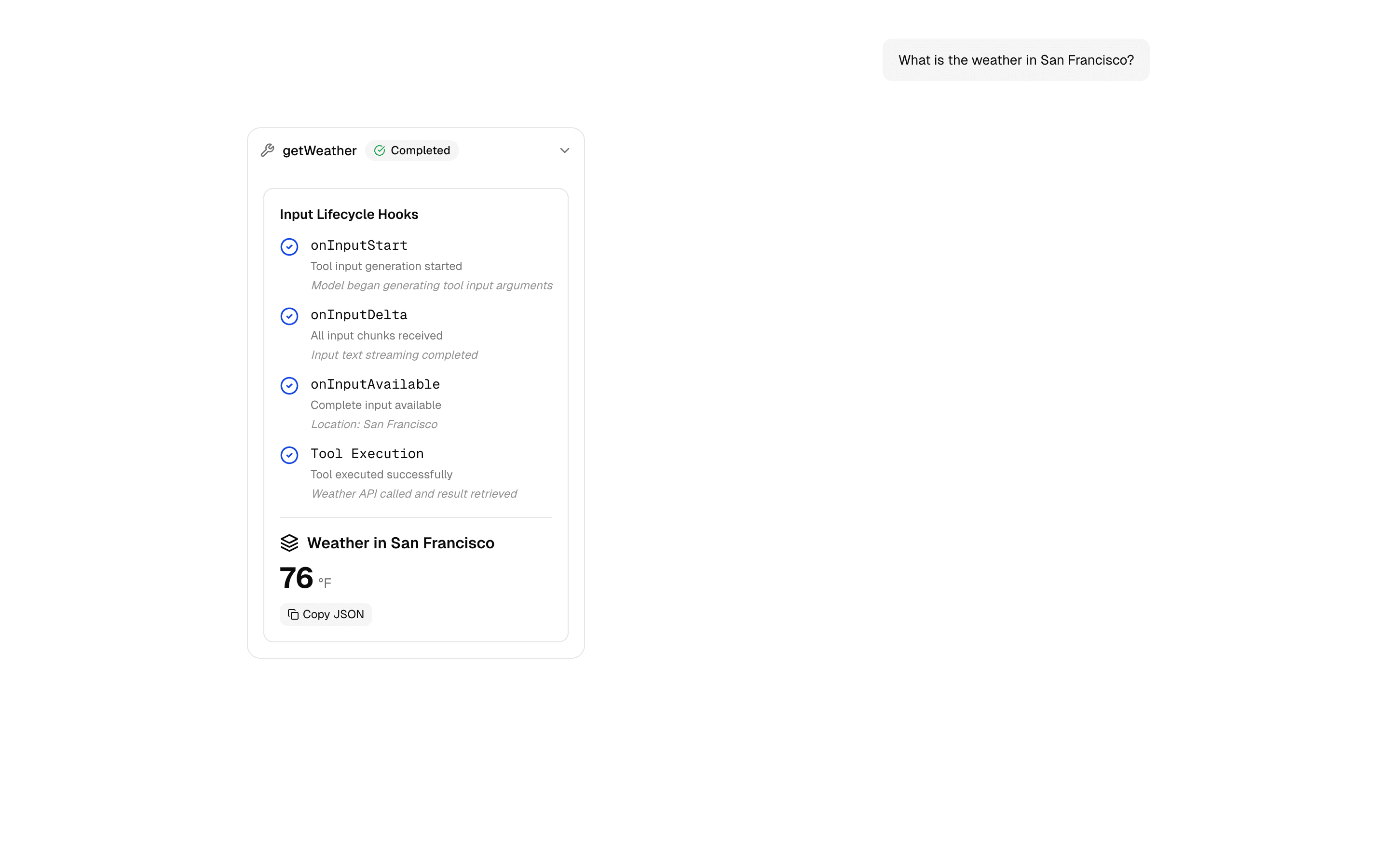
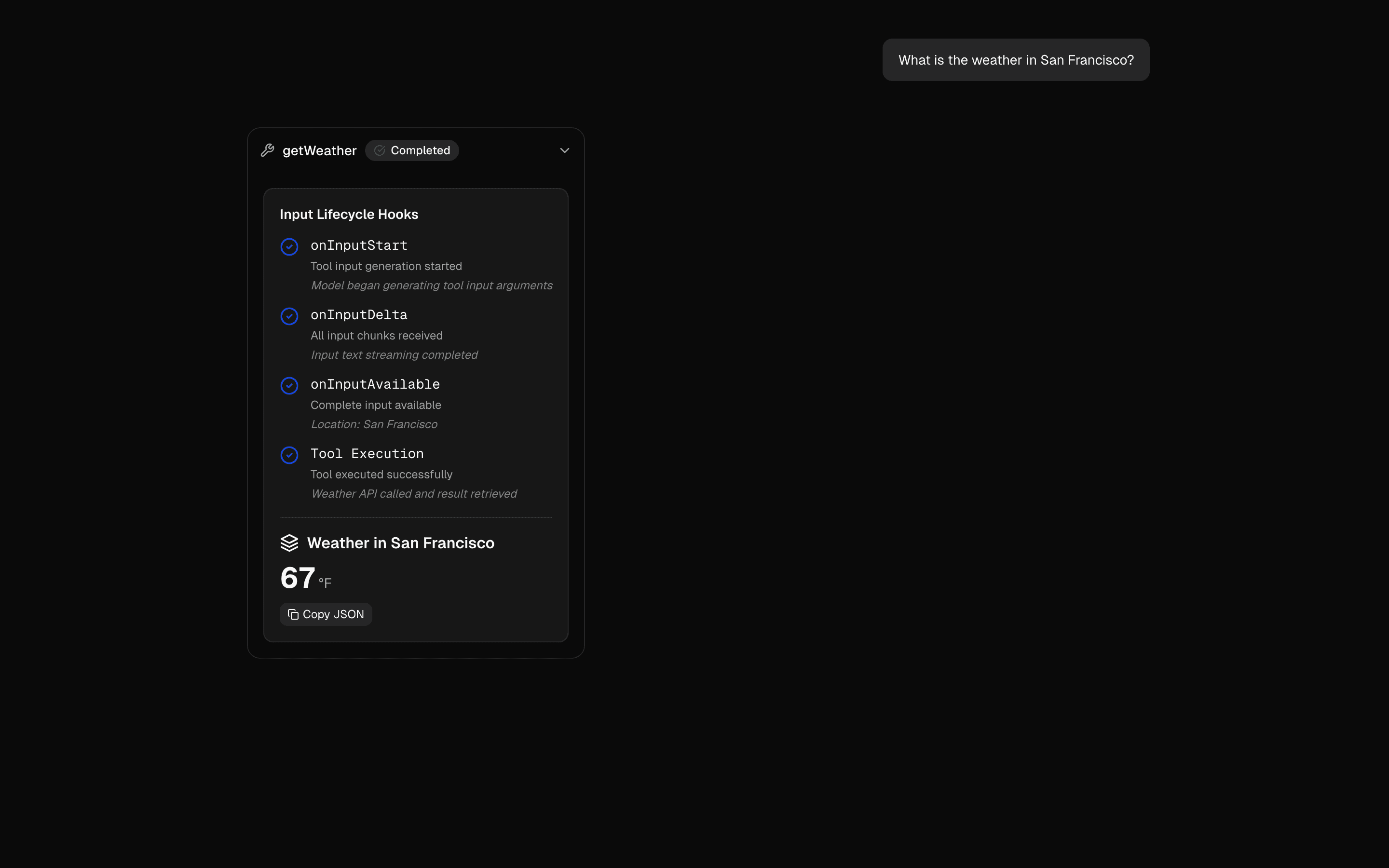
Lifecycle hooks give you fine-grained control over the tool execution pipeline. Instead of a simple input → execute → output flow, you can intercept and transform data at every stage: before execution, after execution, and on error.

The AI SDK's tool() function accepts hook callbacks that run at specific points in the tool lifecycle. The onInputParsed hook fires after the model's tool call parameters are validated against your Zod schema but before the tool executes — giving you a chance to transform, enrich, or reject the input. The onOutput hook processes the result before it is returned to the model.

The practical use case is input sanitization and output formatting. A web search tool might normalize the query in onInputParsed, execute the search, then format the results in onOutput to be more useful for the model's next reasoning step. Error hooks can implement fallback logic or graceful degradation.

Use lifecycle hooks when you need to separate tool logic from data transformation. The tool itself stays focused on its core capability, while hooks handle cross-cutting concerns like logging, validation, rate limiting, and output formatting.
APIsstreamTextconvertToModelMessagestool(useChatonInputStartonInputDeltaonInputAvailable
Servicesopenai
Tagsaitoolslifecycle-hooksonInputStartonInputDeltaonInputAvailablestreamingai-sdktool-api
HIL Tool Approval Basic preview

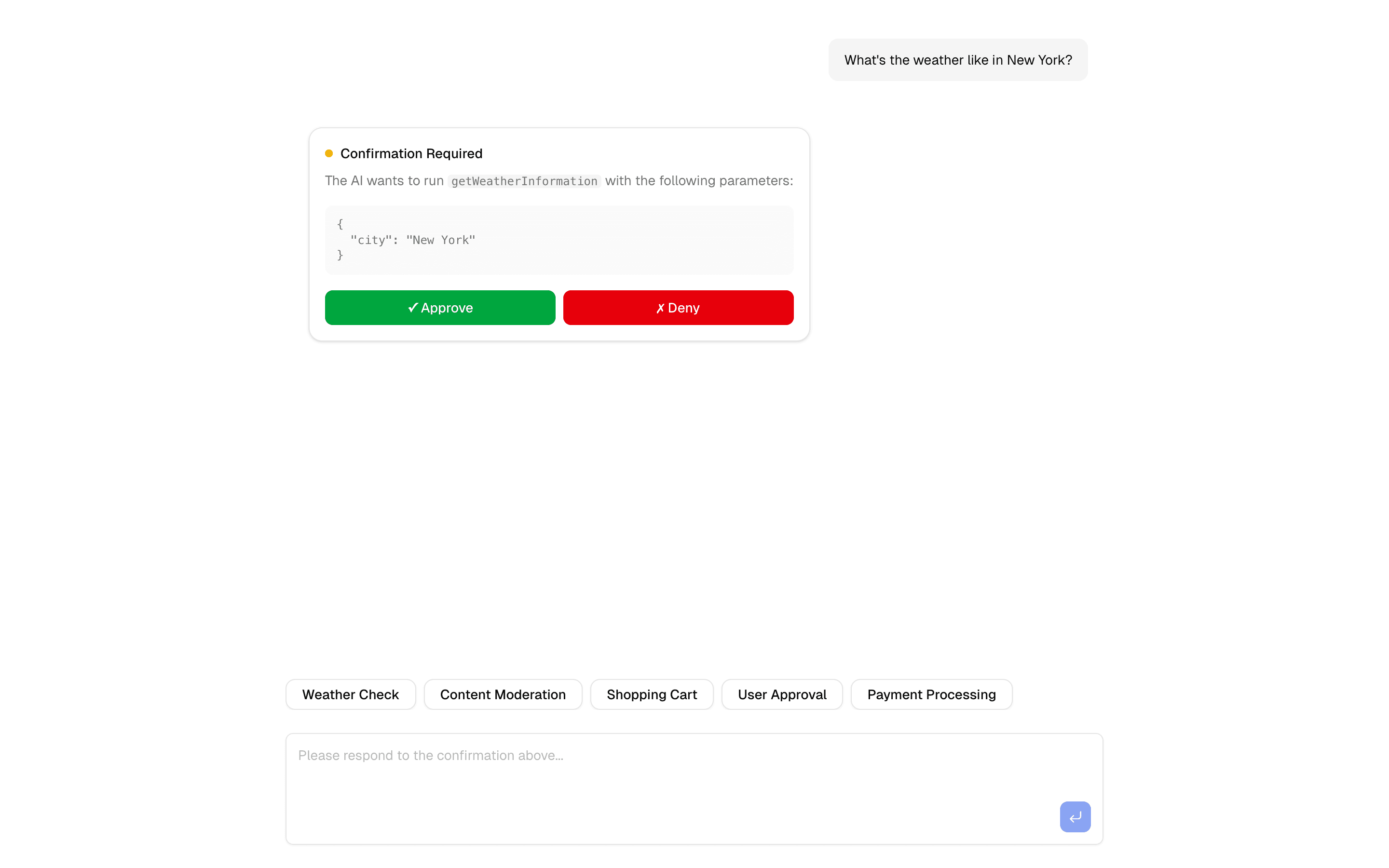
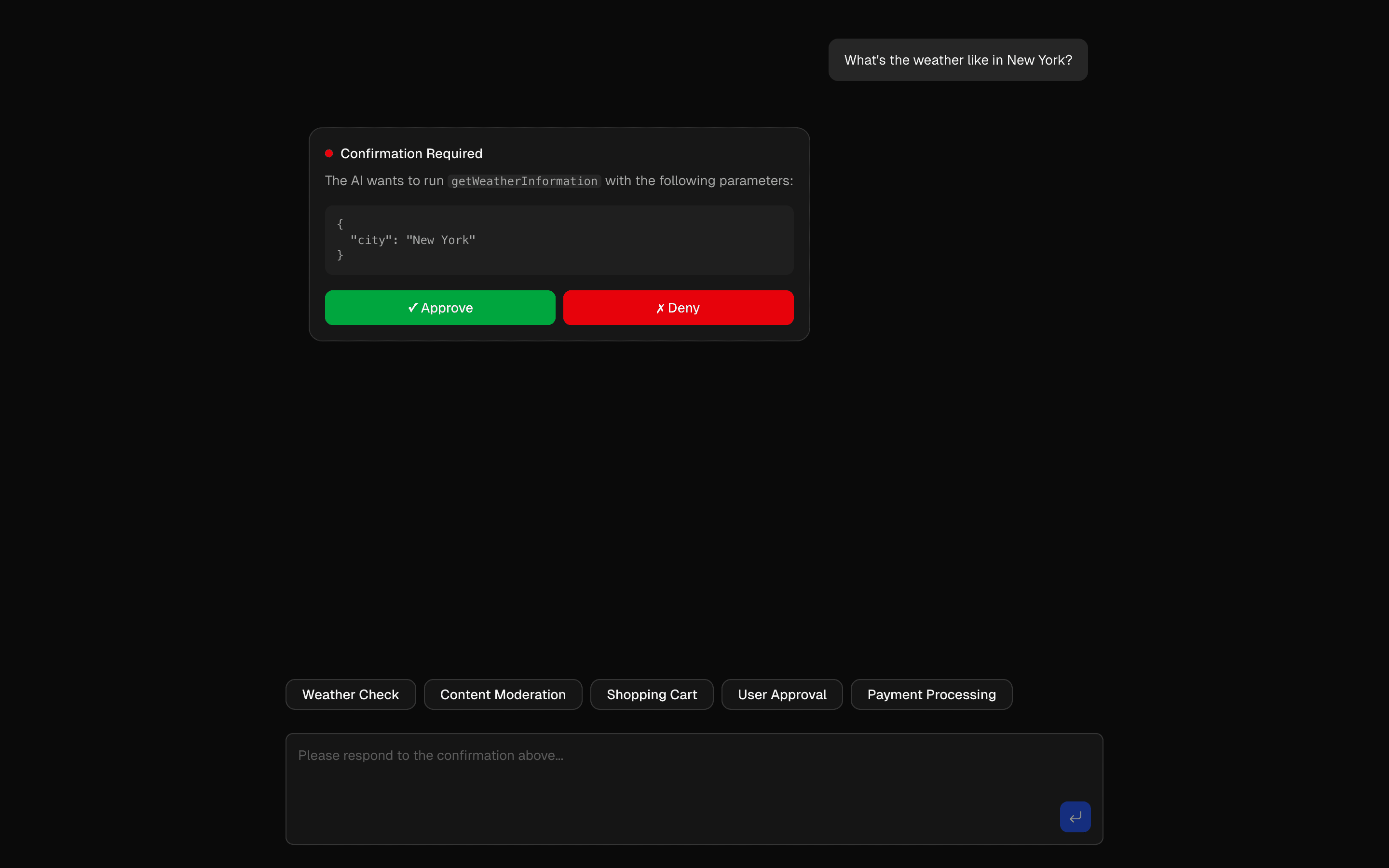
The human-in-the-loop pattern adds a confirmation gate before the AI executes sensitive actions. Instead of letting the agent autonomously call tools, the system pauses execution, presents the proposed action to the user, and waits for explicit approval before proceeding.

This is built on the AI SDK's toolCallConfirmation mechanism. When the agent decides to call a tool, the UI renders a confirmation dialog showing exactly what the tool will do — the function name, parameters, and a human-readable description. The user can approve, reject, or modify the parameters before execution continues.

The key design decision is where to draw the confirmation boundary. Not every tool call needs approval — reading data is usually safe, but writing, deleting, or sending external requests should require confirmation. The pattern lets you configure which tools are gated and which run automatically.

Use this pattern in any production agent that takes real-world actions: sending emails, modifying databases, calling external APIs, or making purchases. The small latency cost of human confirmation is far cheaper than the cost of an AI making an irreversible mistake.

APIsstreamTextgatewaystepCountIsconvertToModelMessagestool(tools:
Servicesopenai
Tagsaihuman-in-the-loopai-sdktool-approvalchat-interfacerate-limitingsafe-aiworkflow-management
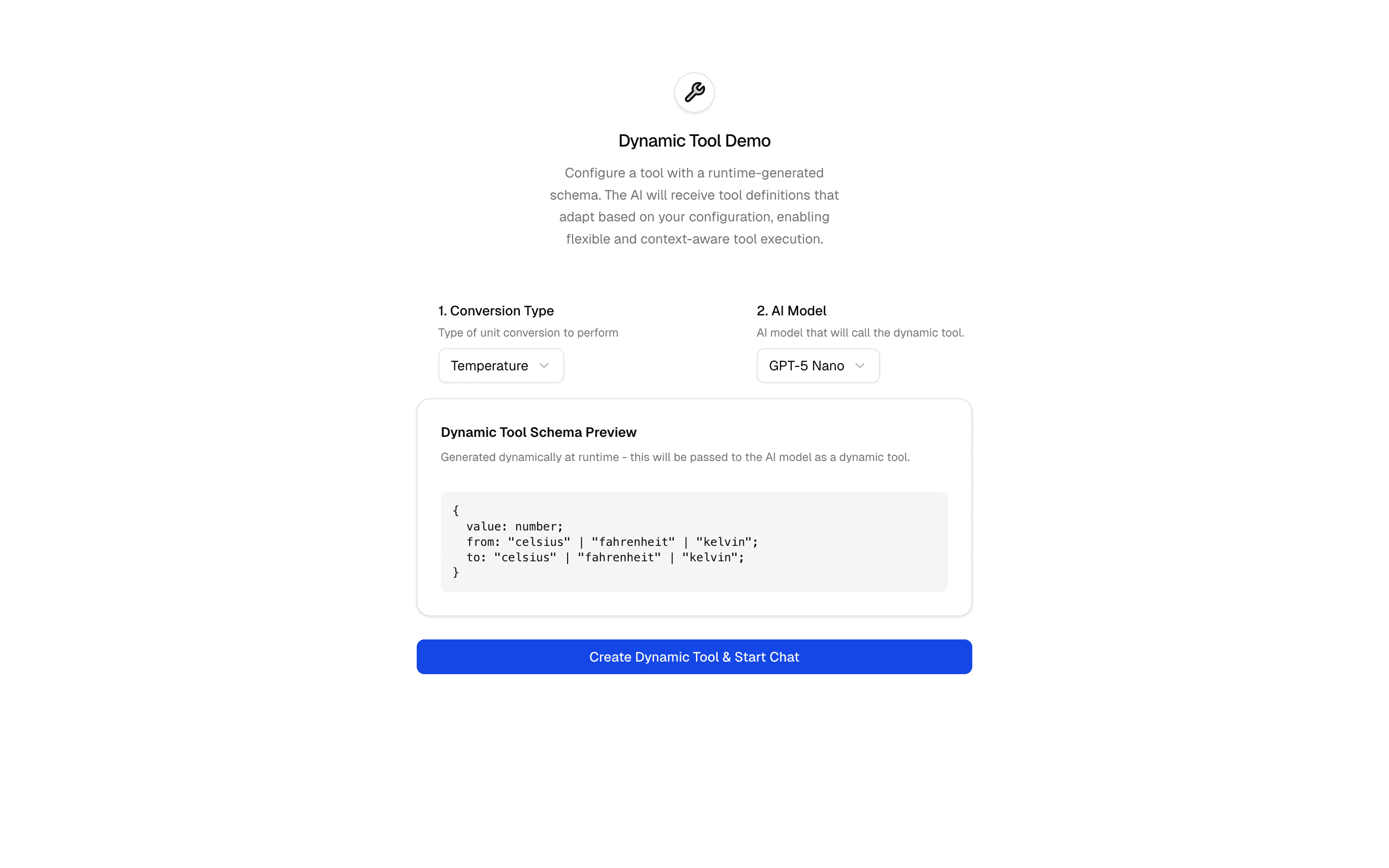
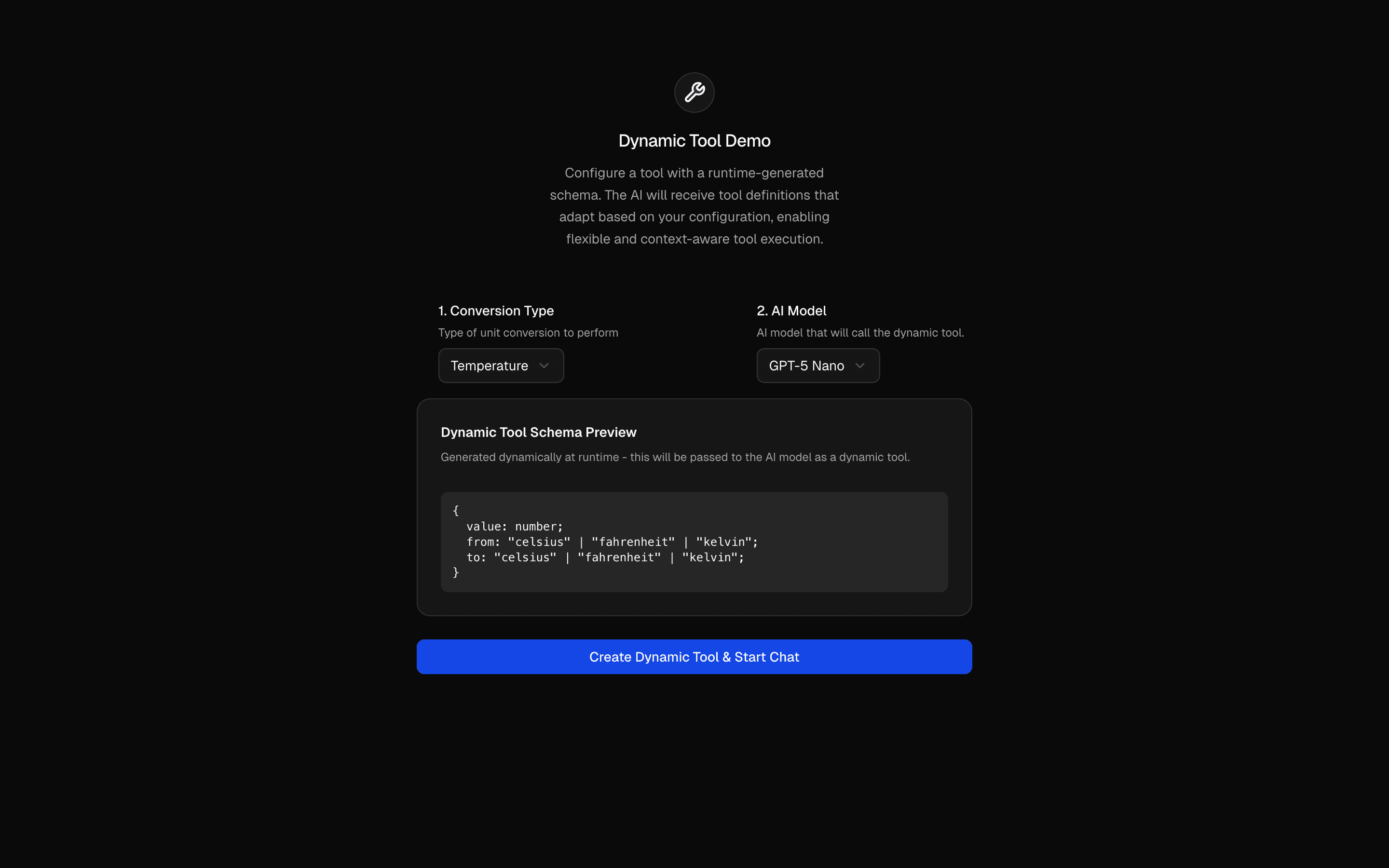
Dynamic Tool preview

Dynamic tools let the agent generate and register new tools at runtime based on the conversation context. Instead of a fixed set of predefined tools, the agent can create specialized tools on the fly — adapting its capabilities to whatever the user needs.

The pattern uses generateObject to produce a tool definition (name, description, parameter schema) based on the current conversation. This definition is then registered as a live tool that the agent can call in subsequent turns. The tool's execute function is wired to a generic handler that interprets the dynamic schema.

The key insight is adaptability without deployment. A static tool set requires you to anticipate every capability the agent might need. Dynamic tools let the agent extend itself based on the problem at hand — creating a CSV parser when the user uploads a spreadsheet, or a date calculator when the conversation turns to scheduling.

This is an advanced pattern for highly flexible agent systems. The trade-off is reduced predictability — you cannot statically analyze which tools the agent might use. Use this when the problem domain is broad and unpredictable, and pair it with human-in-the-loop approval for safety.

APIsstreamTextconvertToModelMessagesdynamicTooluseChatprepareSendMessagesRequest
Servicesopenaianthropicgoogle
Tagsaitoolsdynamic-toolruntime-toolsunit-converterschema-generationdynamic-schemaai-sdktool-apimodel-selection
Exa Web Search Tool preview

The Exa web search tool integrates neural search into your AI agent. Unlike traditional keyword search, Exa uses embeddings to understand the meaning behind queries, returning results that are semantically relevant even when they do not contain the exact search terms.

The tool definition wraps the Exa API with a Zod schema for the search parameters — query, number of results, content filters, and domain restrictions. The execute function calls the Exa API and returns structured results with titles, URLs, and content snippets that the agent can reason over.

The integration pattern shows how to wire an external API into the AI SDK's tool system. The Zod schema validates the model's search parameters before they hit the API, and the result is formatted as a string that the model can parse in its next reasoning step. Error handling covers rate limits, API failures, and empty result sets.

Use this pattern to give your agent real-time information access. Research agents, fact-checkers, content creators, and market analysts all benefit from live web search. The Exa provider is particularly strong for technical and academic queries where semantic understanding outperforms keyword matching.

APIsstreamTextstepCountIsconvertToModelMessagestool(
Servicesexa
Tagsaiwebsearchexasearch-toolresearchcontent-discoverysemantic-searchlive-crawlingzod-validationtype-safe
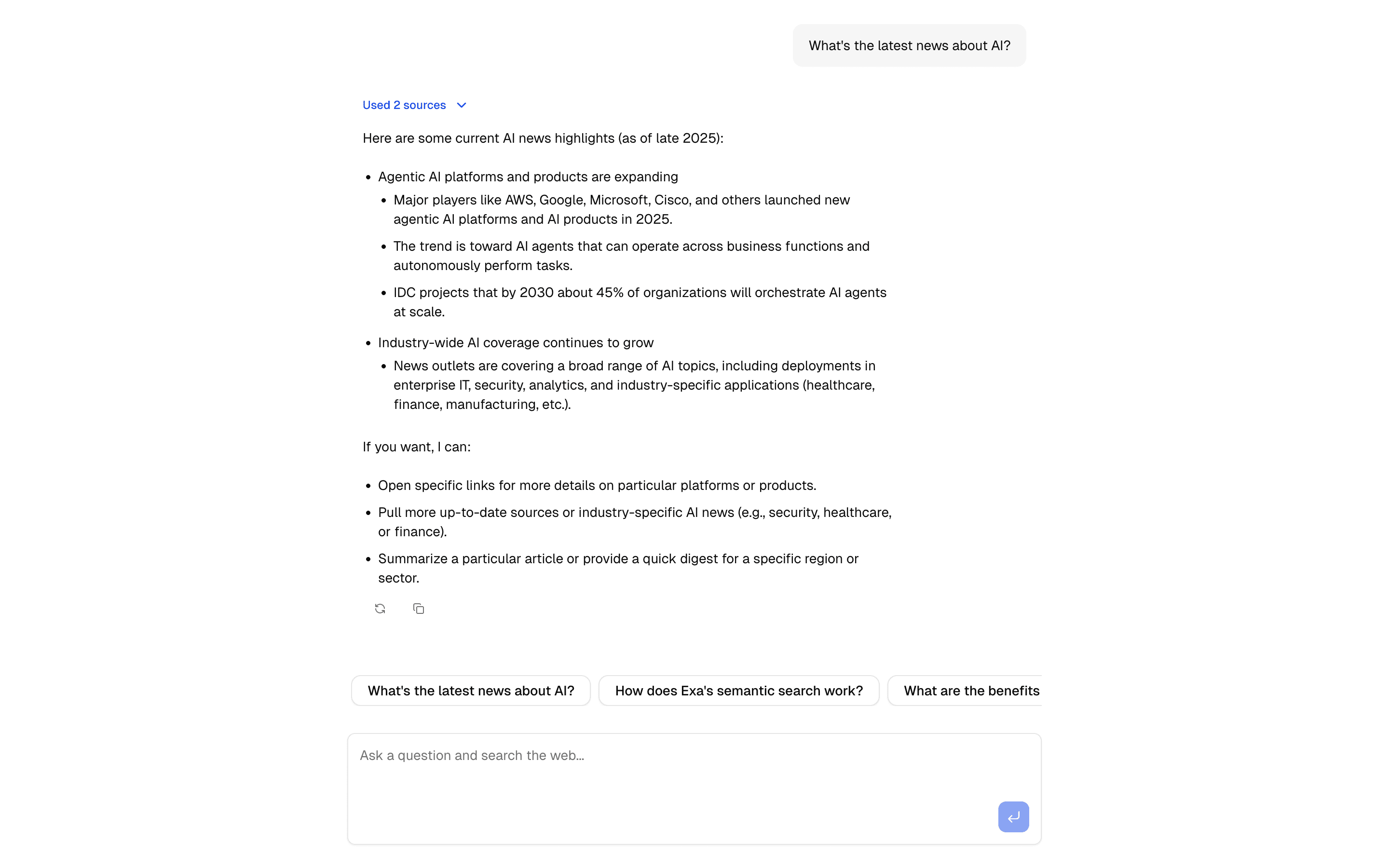
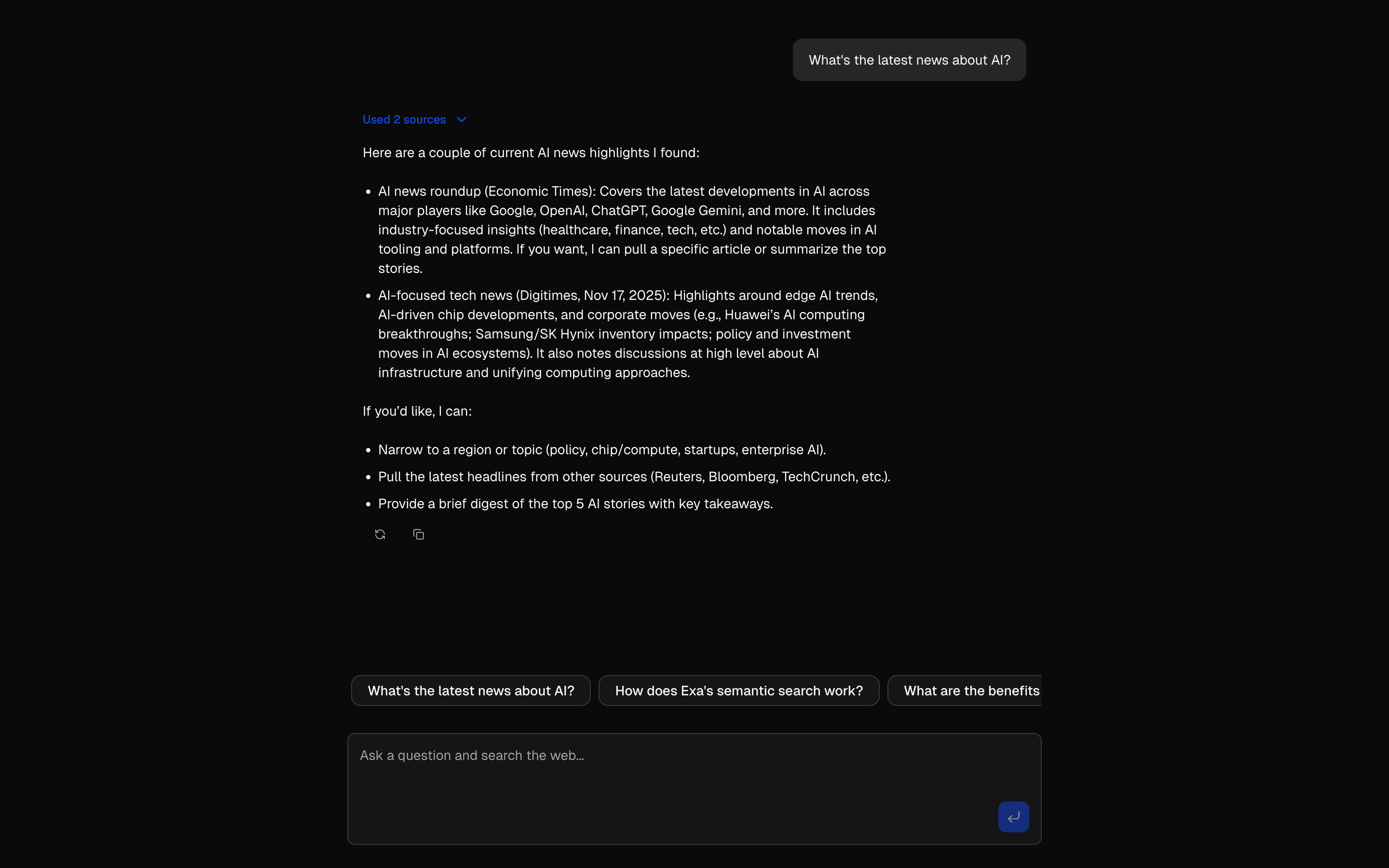
Web Search Tool preview

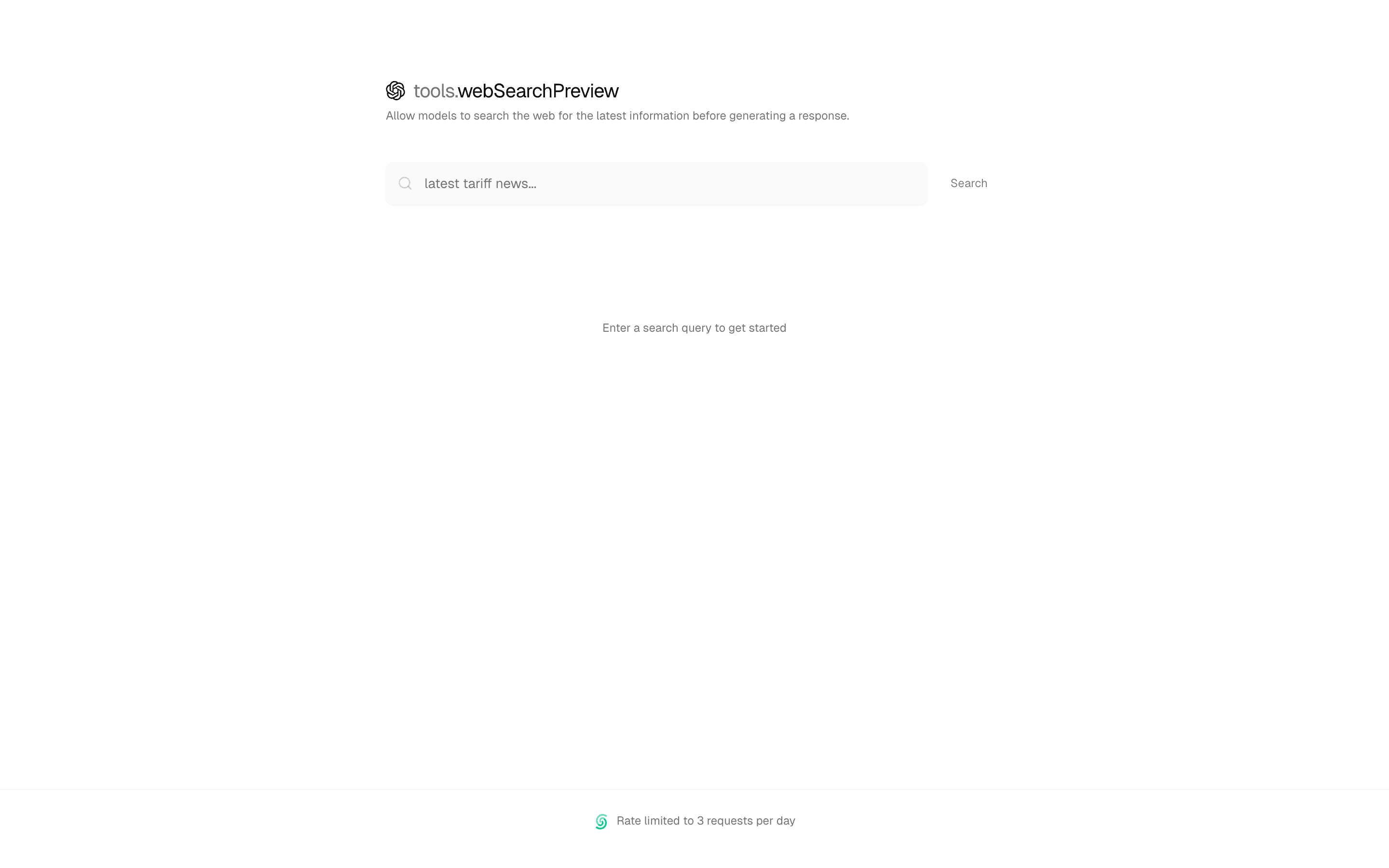
The web search chat pattern creates a research-capable conversational agent that can search the web, read results, and synthesize information — all within a streaming chat interface. The user asks a question, and the agent decides whether to search, what to search for, and how to combine the results into a coherent answer.

This pattern combines streamText with web search tools to create an agent that reasons about when to search. Not every user message requires a web search — the agent uses its training knowledge for simple questions and reaches for the search tool only when it needs current information or specific facts.

The UI renders search results inline as source citations. When the agent uses information from a search result, the citation appears alongside the generated text, giving the user a way to verify the information. The streaming architecture means the user sees the agent's thinking process in real time — search queries appear, results load, and the synthesis builds up progressively.

Build on this pattern for knowledge-intensive applications: customer support with documentation search, research assistants, news aggregators, or any chat interface where answers need to be grounded in external sources.

APIsgenerateTexttools:
Servicesopenai
Tagsaiwebsearchopenai
Cheerio Web Scraper preview

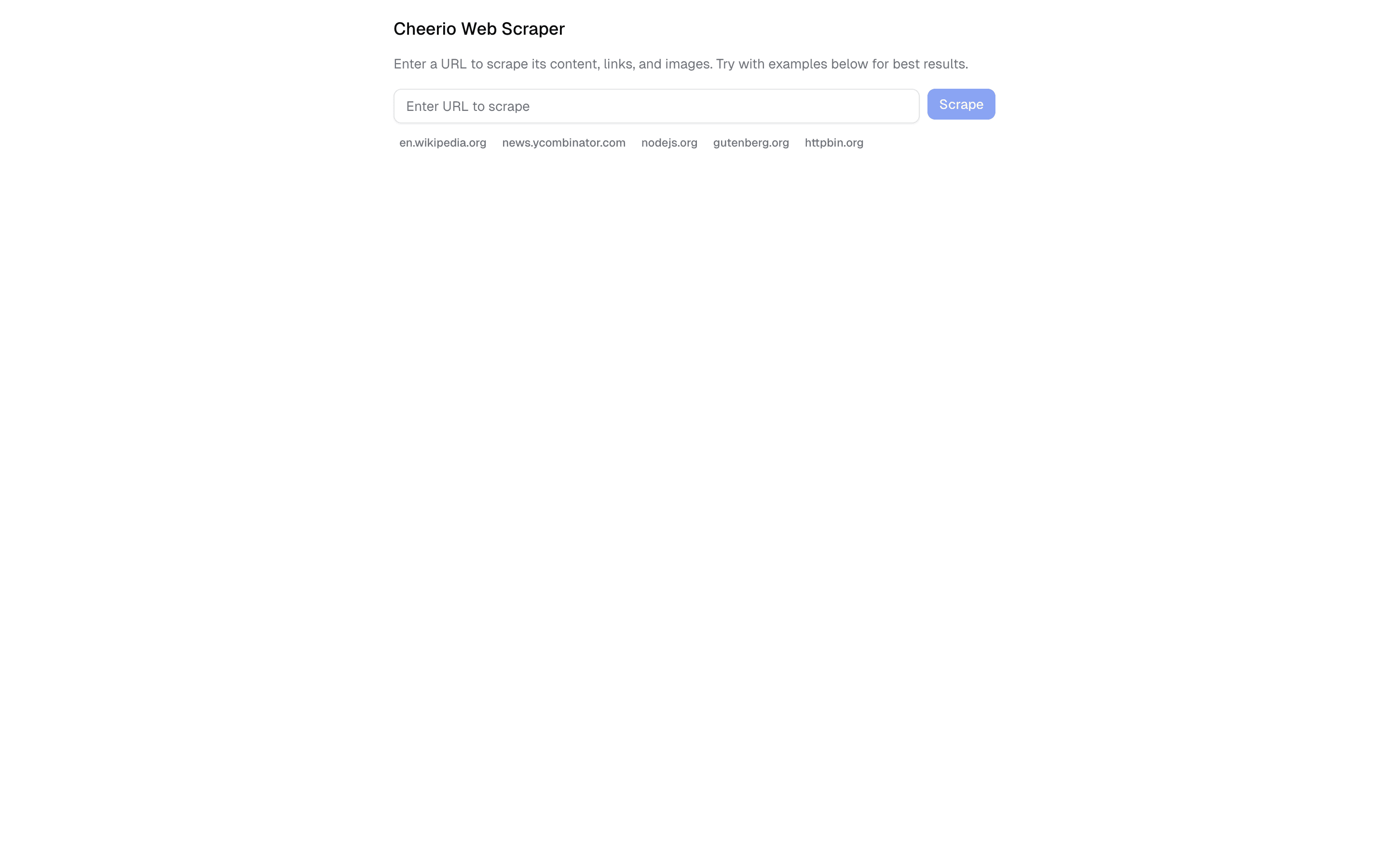
The Cheerio scraper tool gives your AI agent the ability to extract structured data from any web page. Unlike web search which returns snippets, the scraper fetches the full HTML, parses it with Cheerio (a server-side jQuery implementation), and extracts titles, links, images, and text content.

The tool pipeline has three stages: fetch the URL with error handling for redirects, timeouts, and blocked requests; parse the HTML with Cheerio to extract structured data; and format the results for the AI model. The extracted data includes the page title, meta description, all links with anchor text, and the main content text.

The pattern handles common scraping challenges out of the box: user-agent rotation to avoid blocks, timeout configuration, content-type validation, and graceful error messages when sites refuse the request. The extracted data is returned as a structured object that the agent can query and reason over.

Use this pattern for data extraction workflows: competitive analysis, content aggregation, lead generation, or any scenario where your agent needs to read and understand web pages. Pair it with the web search tool — search finds relevant URLs, the scraper extracts their content.

Tagscheerioscraperwebdata-extraction
PDF Analysis Tool preview

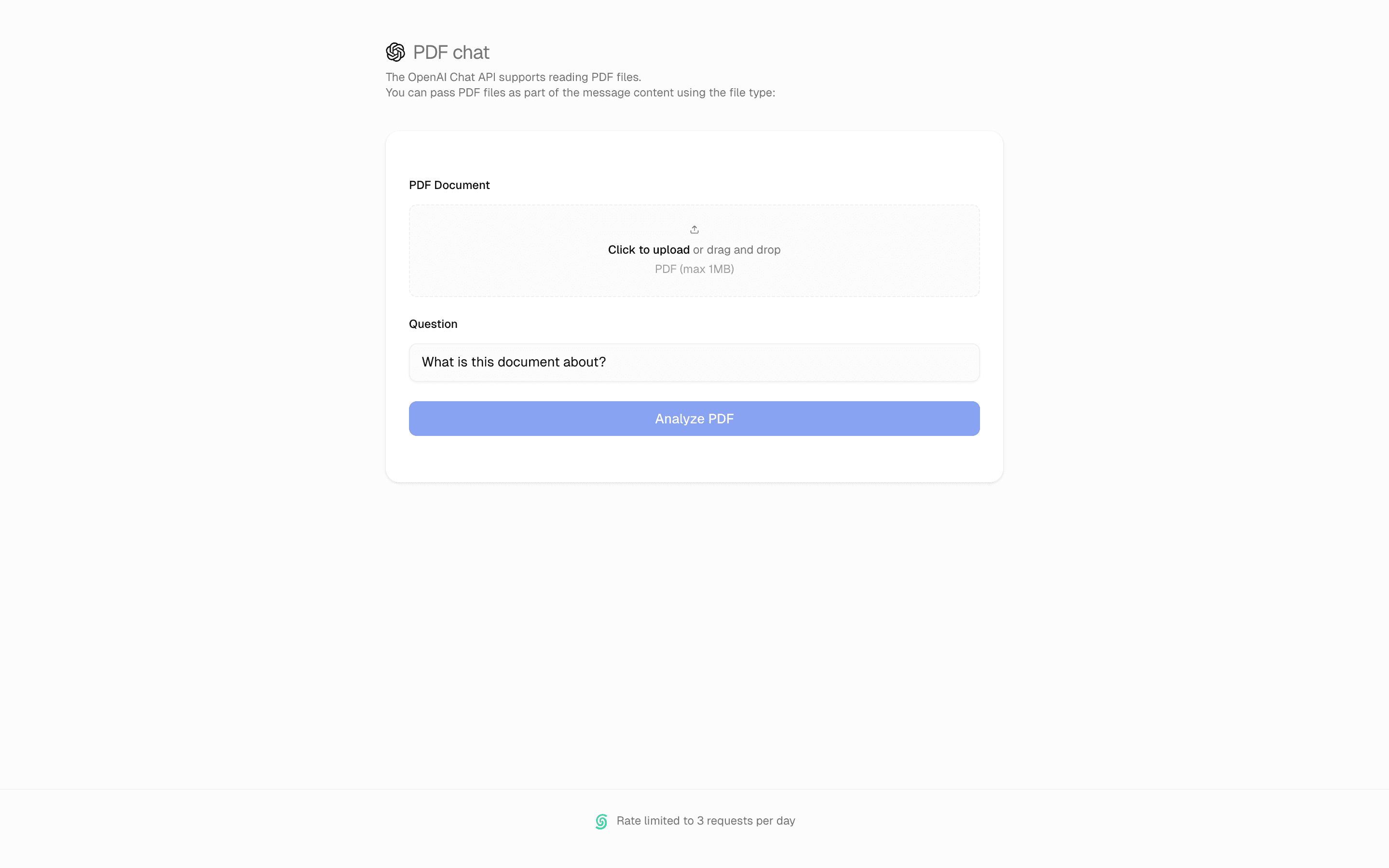
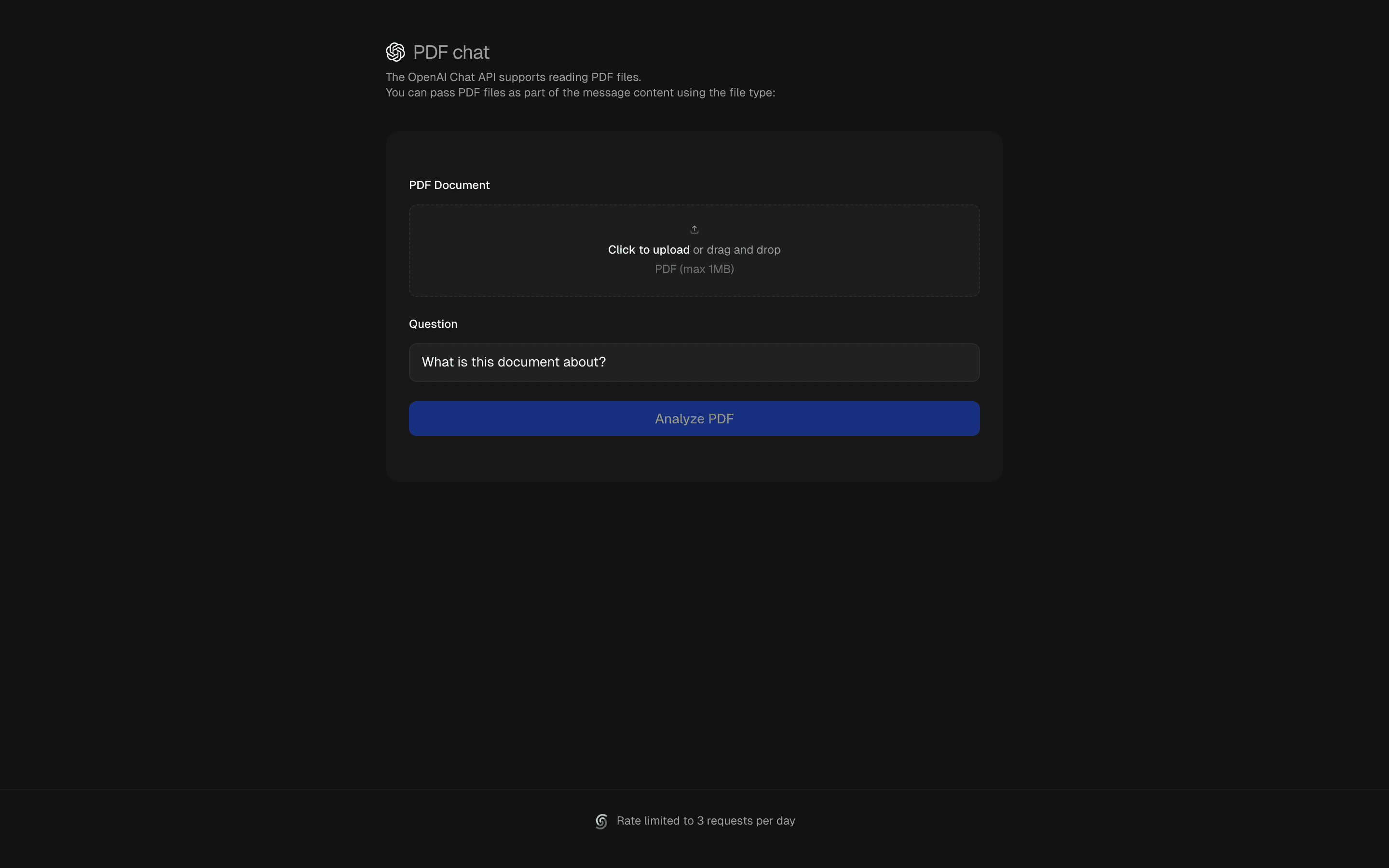
The PDF analysis tool enables your AI agent to process PDF documents — extracting text, generating summaries, and identifying key insights. Users upload a PDF through the chat interface, and the agent analyzes the document's content using the AI model.

The pattern uses the OpenAI Chat API's native PDF support, passing the PDF file as part of the message content using the file type. The model can read the document directly without a separate text extraction step, preserving formatting context that pure text extraction would lose.

The UI component handles file upload with drag-and-drop support, file validation (type and size checks), and upload progress indication. Once uploaded, the agent can answer questions about the document's content, summarize sections, extract specific data points, or compare information across multiple uploaded documents.

This is essential for any document-heavy workflow: legal document review, academic paper analysis, financial report summarization, or contract extraction. The pattern includes rate limiting to manage API costs, and the streaming interface means users see the analysis build up in real time rather than waiting for a complete response.

APIsstreamText
Servicesopenai
Tagsaipdfanalysisopenai

All Patterns

33 more
01
AI Profile Enrichment Form
INT
02
Jina AI Web Scraper
BEG
03
Cloudflare Markdown.new Web Scraper
BEG
04
Claude Web Search Tool
INT
05
@exalabs webSearch Tool
INT
06
Firecrawl Scrape Tool Chat
INT
07
HIL Needs Approval
INT
08
Preliminary Tool Results
BEG
09
Tool API Context
BEG
10
Tool Call Repair
INT
11
Search - Exa AI (robust)
12
Search - Firecrawl (robust)
13
Scrape - Cheerio (lightweight)
14
Scrape - Jina AI (advanced)
15
Scrape - Markdown.new (free)
16
AI SDK Gemini Flash Text
INT
17
AI SDK Gemini Flash Image
INT
18
AI SDK Gemini Flash Image Edit
INT
19
AI SDK Gemini Flash Image Merge
INT
20
Structured Agent Output: Output.choice
INT
21
Structured Agent Output: Output.array
INT
22
Generate Speech (OpenAI)
23
Transcribe Audio (OpenAI)
24
Generate Text
25
Stream Text
26
Streaming Structured Output
27
OpenAI Structured Output
28
Claude Structured Output
29
Gemini Structured Output
30
Generate Image (OpenAI)
31
Generate Image (Fal.ai)
32
Generate Speech (ElevenLabs)
33
Transcribe Audio (ElevenLabs)

Browse by Category

End of AI Agent Skills